Your first login
This page walks you through signing in to Smart Maintenance Task Manager for the first time. If you're a field technician setting up the mobile app, skip to Pairing and setup instead.
Before you start
You need an account. Your company's Admin creates accounts — if you don't have credentials, contact them first.
Steps
1. Open the web portal
Your organisation has a dedicated URL. Typical examples:
- Production:
https://portal.sm-tm.app - Staging:
https://portal.staging.sm-tm.app
Your Admin will have sent you the correct URL.
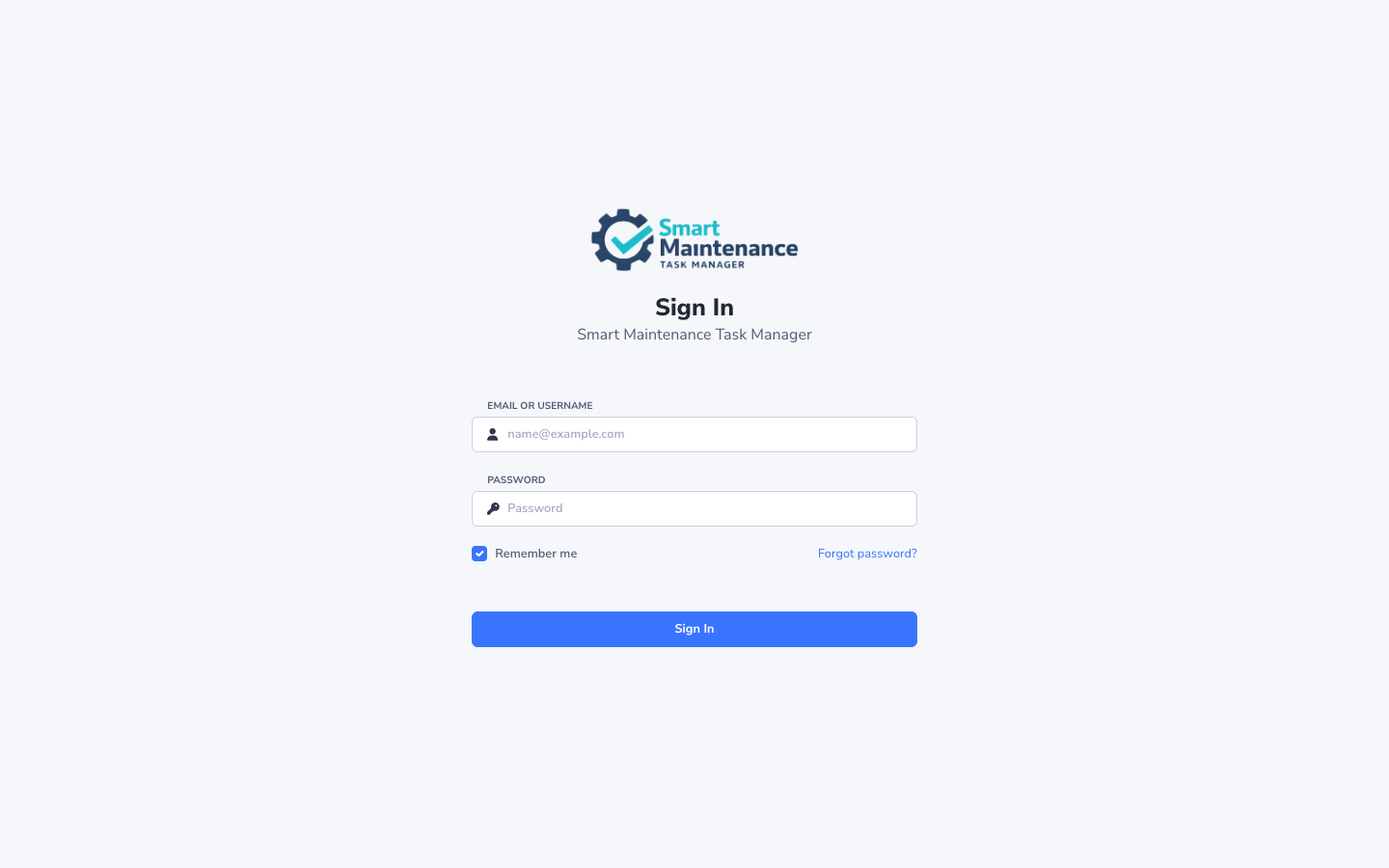
2. Enter your credentials
Type your email (or username) and password, then click Sign in.
If you forgot your password, click Forgot password? and follow the instructions. A reset link will arrive by email from noreply@sm-tm.app.
Didn't receive the reset email?
Check your spam folder first. If it's not there, contact your Admin — the email address on your account may be out of date.
3. Confirm your company
If your account belongs to multiple companies (rare), you'll be asked which company context to use. Pick one and click Continue.
4. Land on the dashboard
You're in. The screen you see first depends on your role:
| Your role | Landing page |
|---|---|
| Technician | Tasks list |
| Mapper | Asset hierarchy |
| Supervisor | Dashboard |
| Manager | Dashboard |
| Admin | Dashboard |
| Viewer | Dashboard |
| PegotecUser | Dashboard |
Change your password
- Click your avatar in the top-right.
- Click Profile.
- Click Change password.
- Enter your current password and choose a new one (minimum 8 characters).
- Click Save.
Set your language
By default the platform uses your browser's language (if supported). To change it manually:
- Avatar → Profile.
- Open the Language dropdown.
- Pick your preferred language and click Save.
Fourteen languages are supported. See Supported languages.
Next steps
- Technicians: continue to Pairing and setup to install the mobile app.
- Supervisors / Admins: open the role handbook for your role.
- Everyone: skim Navigating the portal to learn the layout.