General Schedule Setup
Configure how often tasks recur — per line, asset, or section — using a cascading drill-down.
Required role
Mapper or Admin. Supervisor and Viewer have read-only access.
Overview
General Schedule Setup is where the scheduler's frequency is configured. Unlike a single flat list of schedules, the page uses a cascading drill-down: pick a Line → pick an Asset → pick a Section → configure. Each level scopes the schedules you see and edit to that part of the hierarchy.
The scheduler runs in the background and generates task instances on the calendar using the frequencies configured here. The generated instances show up in Daily Planning, Assign Task, and all the reports.
Open the page
Task Planning → General Schedule Setup. URL: /schedule-settings.
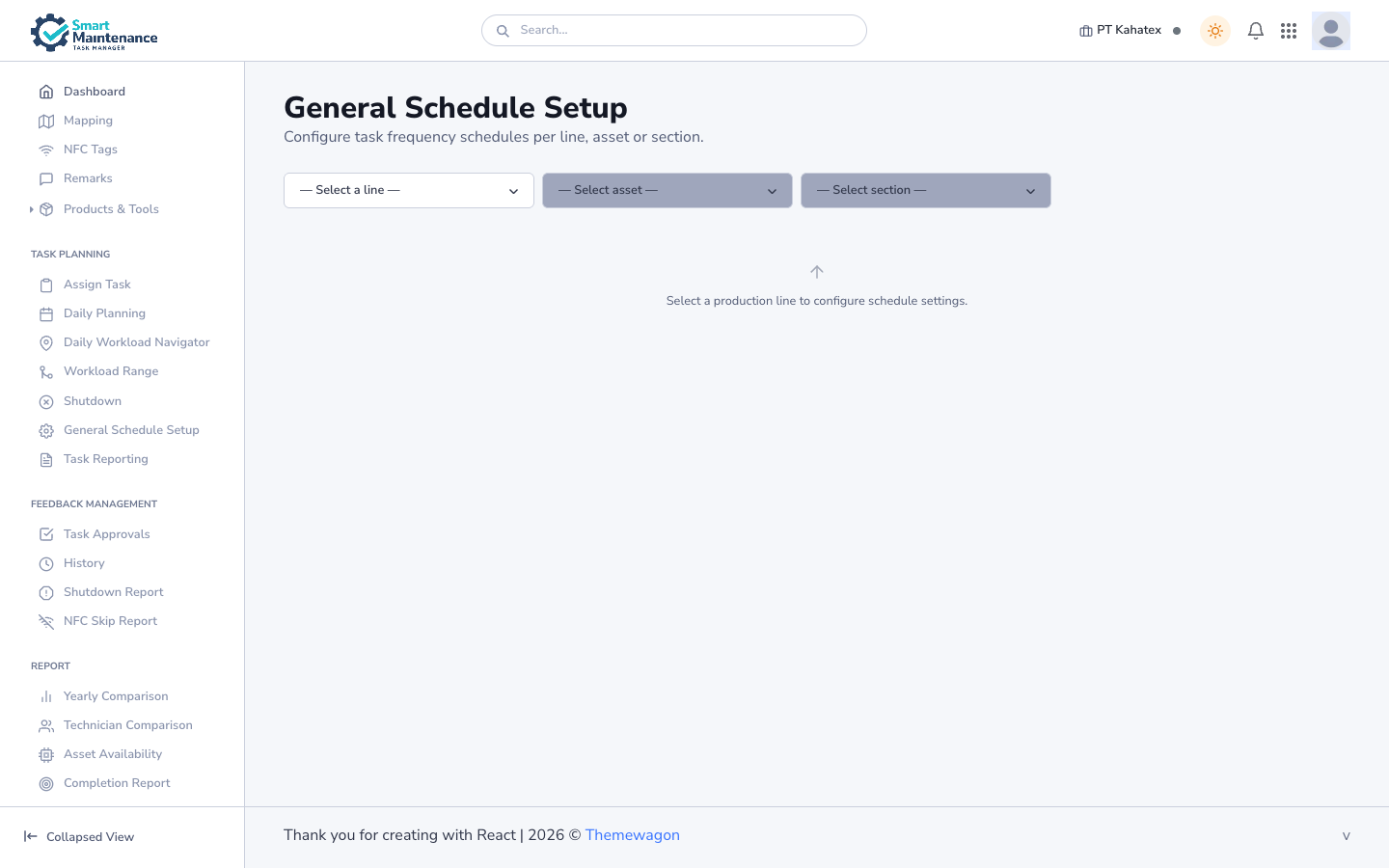
Layout
Three cascading dropdowns at the top:
- Select a line — populated with your company's production lines.
- Select asset — disabled until you pick a line; then shows assets under that line.
- Select section — disabled until you pick an asset; then shows sections on that asset.
Below the dropdowns the page shows an empty state until a selection is made: "Select a production line to configure schedule settings."
Steps
1. Pick the scope
Work top-down:
- Pick a Line from the first dropdown. The Asset dropdown enables.
- Optionally pick an Asset to narrow further. The Section dropdown enables.
- Optionally pick a Section to narrow again.
Pick at any level — you don't have to drill all the way. Line-level changes cascade to every asset and section under it unless overridden more specifically.
2. Configure frequencies
Once you've picked a scope, the page displays the schedule configuration for that scope. Typical options include:
- Daily / Weekly / Monthly / Yearly frequency.
- Day of week for weekly (Mon, Tue, …).
- Day of month for monthly.
- Time of day.
- Run-hour-based triggers for Production-style tasks.
The exact fields shown depend on the scope you selected and which task types apply at that level.
3. Save
Save the configuration for the current scope. The scheduler picks up the new rule on its next run (within a few minutes) and starts generating instances accordingly.
Override pattern
Configurations on a more specific scope override the broader scope:
- A Line-level weekly frequency applies to every asset/section under the line by default.
- An Asset-level configuration overrides the Line-level for that specific asset.
- A Section-level configuration overrides the Asset-level for that specific section.
This lets you set a sensible default at Line level, then adjust individual assets that need different treatment without fragmenting the whole setup.
Things to watch for
Schedule changes don't retroactively modify existing instances
Editing a frequency affects only future task generations. Instances already created retain the parameters they had at generation time. If you need to reshape existing tasks, edit or delete them individually.
Plan from the top down
Configure Line-level defaults first, then adjust specific assets and sections that need exceptions. Starting from the bottom means many individual edits that could have been one broader rule.
Run-hour schedules need Production tasks
Run-hour-based triggers rely on run-hour readings captured by Production-type tasks. Without regular Production task execution on an asset, run-hour schedules won't fire.
Related topics
- Daily Planning — the calendar view of what's been generated.
- Assign Task — assigning generated instances to technicians.
- Task types — which task types support which schedule styles.
- Asset hierarchy — the structure the scheduler scopes by.
- Mapper handbook