Company Setting
Configure company-wide behaviour: company profile, application settings, features, scheduling, task escalation, access control, and approval policy.
Required role
Admin.
Overview
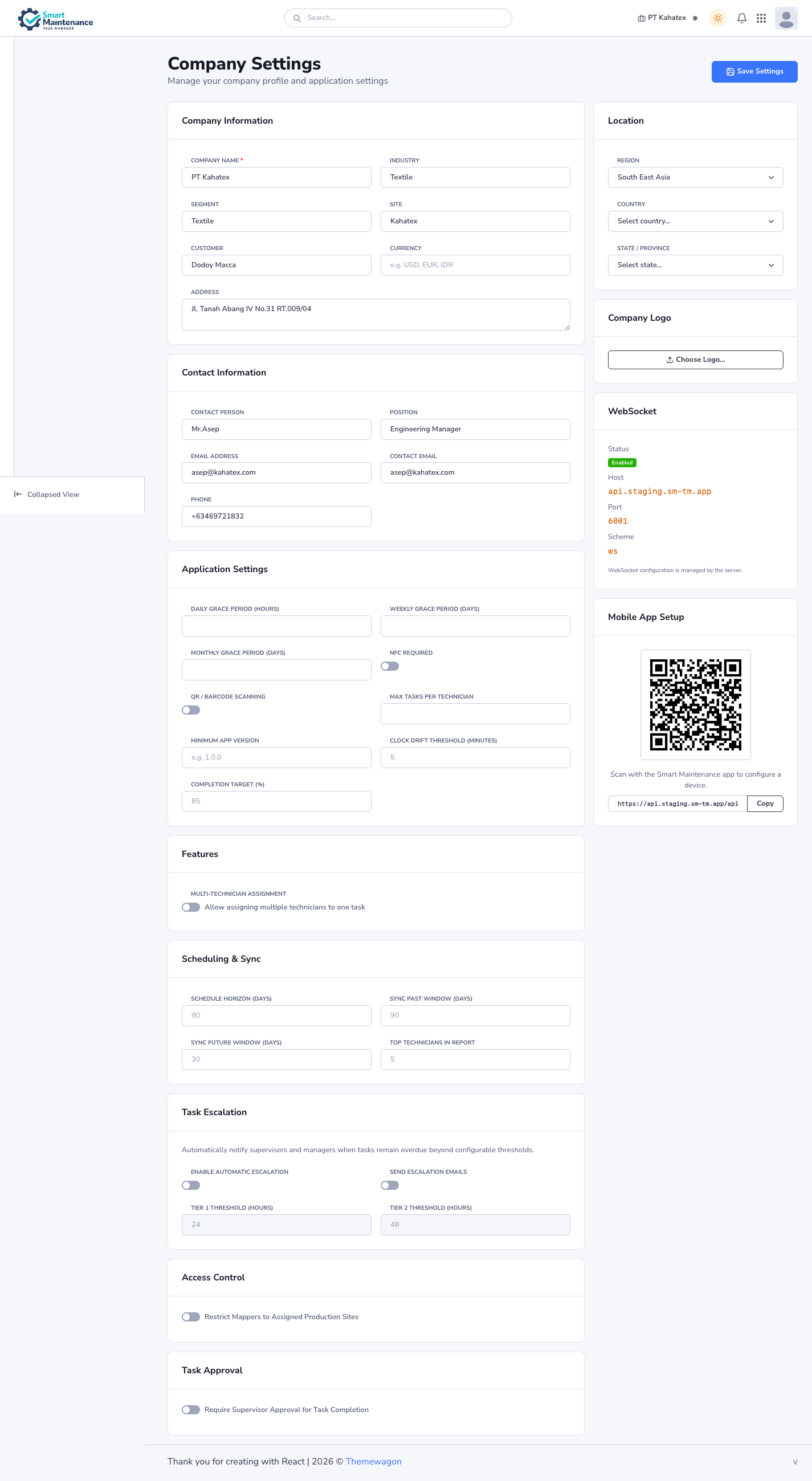
Company Setting is the top-level configuration page for your tenant. Everything here applies to every user in the company. For personal preferences (language, avatar, password) each user manages their own in Profile and settings.
The page has nine logical sections, all visible at once (not tabbed). A single Save Settings button at the top-right commits every change.
Open the page
Configuration → Company Setting in the sidebar. URL: /settings.
Company Information
Your tenant's display identity.
| Field | Effect |
|---|---|
| Company Name (required) | Appears in the portal header, email notifications, and printable report headers. |
| Industry | Free-text descriptor. |
| Segment | Sub-classification within industry. |
| Site | Primary site label. |
| Customer | Internal customer reference (often the plant owner / operator). |
| Currency | Free-text — e.g. USD, EUR, IDR. Used in cost-related reports. |
| Address | Appears on printable exports. |
Contact Information
The primary contact person(s) for this tenant.
| Field | Notes |
|---|---|
| Contact Person | Main point of contact. |
| Position | Their role. |
| Email Address / Contact Email | Two email fields — primary and optional secondary. |
| Phone | Phone number with country code. |
Application Settings
The operational defaults that shape how tasks, overdues, and mobile behave.
| Field | Effect |
|---|---|
| Daily Grace Period (hours) | Grace window before a daily-recurring task counts as overdue. |
| Weekly Grace Period (days) | Same for weekly schedules. |
| Monthly Grace Period (days) | Same for monthly schedules. |
| NFC Required | Toggle. If on, mobile task execution requires an NFC scan; otherwise it's optional. |
| QR / Barcode Scanning | Toggle. Enables the barcode scanner on mobile. |
| Max Tasks per Technician | Cap on concurrent assigned tasks per technician. Blocks further assignment when reached. |
| Minimum App Version | Minimum semver (e.g. 1.2.0) the mobile app must run to sync. Older versions are blocked and prompted to update. |
| Clock Drift Threshold (minutes) | Max allowed deviation between mobile device clock and server. Submissions with clocks outside the threshold get flagged. |
| Completion Target (%) | Company-wide completion-rate target. Shows as a benchmark on reports. |
Grace periods beat tight due times
Instead of marking every task overdue at its exact due time, use grace periods to give technicians buffer. A 2-hour daily grace lets a shift-end task finish without becoming "overdue".
Features
Optional feature toggles — cross-cutting behaviours that change how whole workflows operate.
| Feature | Effect |
|---|---|
| Multi-Technician Assignment | Allows one task to be assigned to multiple technicians simultaneously. Default off. When off, the Assign Task page assigns each selected task to one of the ticked technicians round-robin; when on, the task is duplicated across every ticked technician. |
More feature flags may appear here depending on your installation. See Feature Flags for rollout-scoped toggles (distinct from the core flags shown here).
Scheduling & Sync
Controls for schedule generation and mobile sync windows.
| Field | Effect |
|---|---|
| Schedule Horizon (days) | How far into the future the scheduler pre-generates task instances. Default 90. Higher = more tasks visible in advance, more database rows. |
| Sync Past Window (days) | How far back mobile devices sync historical tasks. Default 90. |
| Sync Future Window (days) | How far ahead mobile devices sync upcoming tasks. Default 30. |
| Top Technicians in Report | Number of technicians to show in the Dashboard / Technician Comparison top-list. Default 5. |
Don't set sync windows too large
A wide sync window pulls more data to every device. For a large plant, this slows the first sync and uses more device storage. 90 days is a reasonable default for most tenants.
Task Escalation
Automatic notifications to supervisors and managers when tasks remain overdue beyond configurable thresholds.
| Field | Effect |
|---|---|
| Enable Automatic Escalation | Master toggle. Default off. |
| Send Escalation Emails | When escalation fires, also send email (in-app notifications are always sent). |
| Tier 1 Threshold (hours) | After this many hours past due, the first escalation fires to Supervisors. Default 24. |
| Tier 2 Threshold (hours) | After this many more hours (beyond Tier 1), the second escalation fires to Admins / Managers. Default 48. |
Escalation is off by default
If the company doesn't explicitly turn this on, overdue tasks do not generate escalation notifications — only the assigned technician's own overdue notification. Turn on Escalation to loop in supervisors and managers automatically.
Access Control
Company-wide access constraints.
| Field | Effect |
|---|---|
| Restrict Mappers to Assigned Production Sites | Toggle. When on, Mapper users see and edit only the production sites explicitly assigned to them (in User List). When off, Mappers see every site in the company. Default off. |
Task Approval
| Field | Effect |
|---|---|
| Require Supervisor Approval for Task Completion | Toggle. When on, technician submissions enter a Pending state and appear in Task Approvals for a Supervisor to approve or reject. When off, submissions auto-complete without review. |
Approval is optional
Task approval is not enabled by default. Many installations run without it (technician submits = task complete). Only turn this on if your operation benefits from a review step — audit environments, safety-critical tasks, training periods.
When approval is off, Task Approvals stays empty; notifications about approval / rejection don't fire.
Location (right column)
Region / Country / State dropdowns. Advisory only — doesn't constrain user access (that's done via production-site scoping in Access Control).
Company Logo (right column)
Upload a logo (SVG or PNG). Appears in the portal header and on printable reports / PDF exports.
WebSocket (right column)
Read-only status of the real-time connection:
- Status — Enabled / Disabled.
- Host — e.g.
api.staging.sm-tm.app. - Port — e.g.
6001. - Scheme —
wsorwss.
Text at the bottom: "WebSocket configuration is managed by the server." — you can't change this from here; it's informational so you can diagnose connection issues.
Mobile App Setup (right column)
A QR code + URL preview for quick mobile pairing. Same capability as the dedicated Mobile Setup (QR) page but shown inline here for convenience.
Includes a Copy button to copy the pairing URL to your clipboard.
Save
The Save Settings button in the top-right commits every change across all sections in one operation. No per-section save — it's all-or-nothing.
Changes propagate:
- Immediately in the web portal on next page load.
- On mobile devices at the next sync cycle (or Force Sync).
Things to watch for
Grace periods ripple into overdue counting
Changing grace periods retroactively re-evaluates which tasks are "overdue". The Dashboard number may jump after a save.
Review grace periods and approval toggle once per quarter
These are the two settings that most commonly drift out of alignment with actual operations. Quick quarterly check keeps them honest.
No site-specific defaults
Company Setting is a single set of values for the whole tenant. If two production sites genuinely need different grace periods, that's a product-level feature request.
Troubleshooting
| Problem | Fix |
|---|---|
| Save Settings button greyed out | Your role may not include settings.edit — only Admin can save |
| Logo doesn't appear | Check file size / format; SVG or PNG, under 200 KB is a good target |
| WebSocket shows red | Server-side connection issue — contact Pegotec support |
| Escalation notifications not firing | Check the toggle is on and Tier 1 / Tier 2 thresholds are set |
| Tasks complete without review | Task Approval toggle is off — turn on if you want the review step |
Related topics
- Feature Flags — rollout-scoped toggles.
- Mobile Setup (QR) — the full mobile-pairing page.
- Task Approvals
- Notifications reference
- Admin handbook