Assign Task
Distribute unassigned tasks to technicians on the Assign Task page — select tasks in the tree, tick technicians on the right, click Assign.
Required role
Supervisor or Admin (requires task.assign).
Overview
The Assign Task page is where Supervisors and Admins distribute the day's unassigned work. It's a three-panel layout:
- Left: a hierarchical tree of unassigned tasks, grouped by line → section → asset → task point.
- Right: the list of technicians with current workload counts.
- Bottom-center: the Assign / Unassign action bar.
You check tasks on the left and technicians on the right, then click Assign. The workflow is checkbox-driven — not drag-and-drop.
Prerequisites
- You have the Supervisor or Admin role.
- At least one task is unassigned (generated by a schedule or created ad-hoc by a Mapper).
- At least one technician exists.
Open the page
Task Planning → Assign Task in the sidebar.
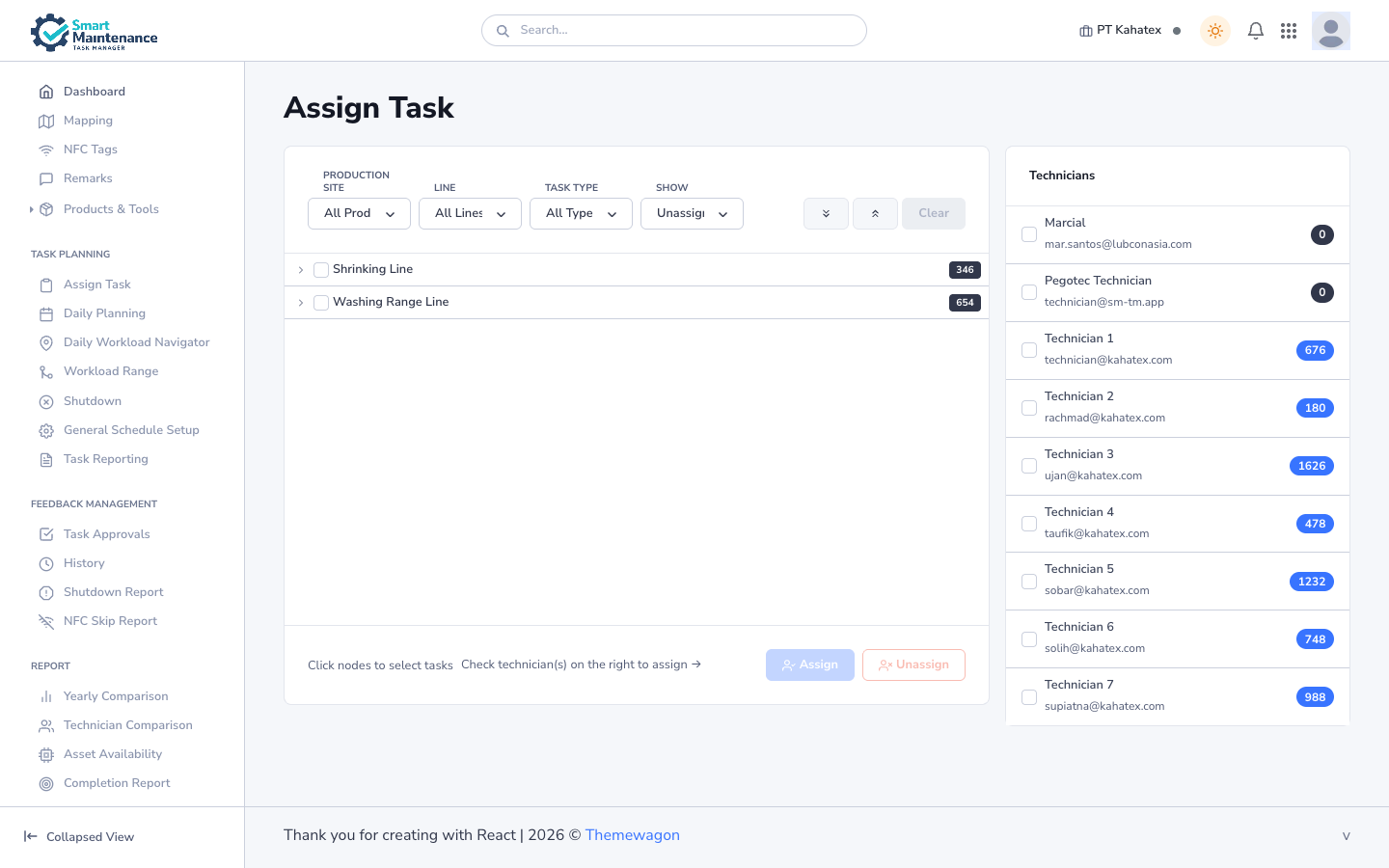
Screen layout
| Area | What it does |
|---|---|
| Filter bar (top) | Narrow the task tree by Production Site, Line, Task Type, and Show (Unassigned Only / All Tasks). |
| Task tree (left) | Lines → sections → assets → task points. Each node has a checkbox and the unassigned-task count on the right. Click the chevron to expand; click the node name to select. |
| Toolbar (right of filters) | Expand all / Collapse all / Clear selection. |
| Technicians panel (right) | Each technician has a checkbox, their name + email, and a workload badge (current assigned count). |
| Action bar (bottom-center) | Assign and Unassign buttons. Both stay disabled until you've selected both a task set and at least one technician. |
Steps
1. Filter the tree
Filters at the top narrow the task tree:
- Production Site — pick one or leave on All Production Sites.
- Line — populates based on the selected site.
- Task Type — choose from Electrical, Lubrication, Mechanical, Production, or Repair request. Default is All Types.
- Show — Unassigned Only (default) hides assigned tasks; All Tasks shows every task in scope.
2. Select tasks
- Expand a line by clicking its chevron to see sections → assets → task points.
- Tick the checkbox on any node to select it and all its descendants.
- Partially-selected parents show a dash instead of a tick.
- Use Expand all / Collapse all in the toolbar to zoom in or out.
You can assign at any level — a line-level tick selects every task under it; a task-point-level tick selects just that one.
3. Tick one or more technicians
The Technicians panel on the right shows every active technician with their current workload count. Tick the checkbox of each technician you want to assign to.
What happens when you tick multiple technicians depends on the company Multi-Technician Assignment flag (in Company Setting → Features):
- Flag off (default) — the selected tasks are split evenly across the ticked technicians, round-robin. Tick exactly one to concentrate the load.
- Flag on — every selected task is duplicated across every ticked technician, so multiple people are assigned to each task simultaneously.
If you're not sure which mode your company uses, ask an Admin.
4. Click Assign
The Assign button in the bottom-center activates when both a task selection and at least one technician are picked. Click it.
What happens next:
- Selected tasks are assigned. The tree refreshes; assigned tasks disappear from the Unassigned Only view.
- The technician's workload badge increments.
- The affected technicians receive a push notification on their mobile app (within seconds if online, next sync cycle otherwise).
5. Verify
- The tree reflects the new state — counts on the parent nodes drop.
- The technician panel's workload numbers update.
Unassigning
To pull tasks back from a technician:
- In the Show filter, switch to All Tasks so assigned tasks appear in the tree.
- Tick the tasks you want to pull back.
- Tick the technician currently holding them.
- Click Unassign.
The tasks return to the unassigned pool.
Patterns
Morning bulk distribution
- Filter by Production Site = (your site).
- Expand all.
- Tick the lines or sections you want to distribute.
- Tick the technicians who are on shift.
- Assign.
Single-task dispatch
- Filter by Task Type to narrow.
- Drill to the specific task point.
- Tick only that task point.
- Tick one technician.
- Assign.
Reassigning a sick technician's full load
- Switch Show to All Tasks.
- Filter the tree down to that technician's unfinished work (often easier from the Daily Planning calendar).
- Tick everything.
- Tick the absent technician → Unassign.
- Tick the replacement technician → Assign (with the tasks still selected).
Task type names
The platform uses these exact task-type labels in the dropdown:
| Label | Typical use |
|---|---|
| Electrical | Voltage, current, insulation, thermal. |
| Lubrication | Grease, oil, sealant application. |
| Mechanical | Inspection, adjustment, cleaning. (Previously called "Maintenance" in some legacy contexts.) |
| Production | Output readings, run-hour captures. |
| Repair request | Resolution of a reported fault. |
See Task types for the form fields per type.
Things to watch for
Multi-select behaviour depends on a company flag
With Multi-Technician Assignment off (default): ticking three technicians distributes tasks round-robin. With the flag on: the same tasks are duplicated across all three. Check the flag in Company Setting → Features if you're unsure.
Keep an eye on workload badges
The workload number next to each technician is a real-time load indicator. Big imbalances (one technician at 1000 while another is at 50) mean rebalancing is overdue.
Offline technicians still get the assignment
A technician who's offline when you click Assign receives the tasks on their next sync. The assignment itself succeeds immediately server-side.
Result
After clicking Assign:
- Tasks appear in each technician's mobile task list.
- Technicians receive push notifications.
- Assignments show in the Dashboard, Daily Planning, and Daily Workload Navigator.
- Approvals follow once technicians submit — see Task Approvals.
Troubleshooting
| Problem | Fix |
|---|---|
| Assign button stays disabled | You need both tasks selected and at least one technician ticked |
| Technicians list is empty | Confirm active users with the Technician role exist in your company |
| Task I expect to see isn't in the tree | Check filters; switch Show to All Tasks |
| Workload badge looks wrong | Refresh — WebSocket updates may lag briefly |
| Task vanished after assignment | Expected — Unassigned Only hides assigned tasks; switch Show to see them |
Related topics
- Task Approvals — the next step after a technician completes.
- Daily Planning — calendar view of the same tasks by day.
- Daily Workload Navigator — hierarchy view of today's work.
- General Schedule Setup — how tasks appear in the unassigned pool.
- Dashboard — assignment metrics at a glance.
- Task types.
- Supervisor handbook.