Daily Workload Navigator
A day-focused dashboard of production-line cards with task counts, status indicators, and a Create Work Order shortcut.
Required role
Supervisor, Admin, Manager, Mapper, or Viewer (with task.view).
Overview
Daily Workload Navigator is the "where in the plant is today's work?" view. It focuses on a single day at a time and shows each production line as a card with task totals, done-so-far counters, a progress bar, and per-task-type indicators.
Use it for:
- Start-of-shift check — which lines have load today?
- Spotting concentration — is one line oversubscribed while others are empty?
- Quickly creating ad-hoc work orders.
Open the page
Task Planning → Daily Workload Navigator. URL: /flowchart/mappingview.
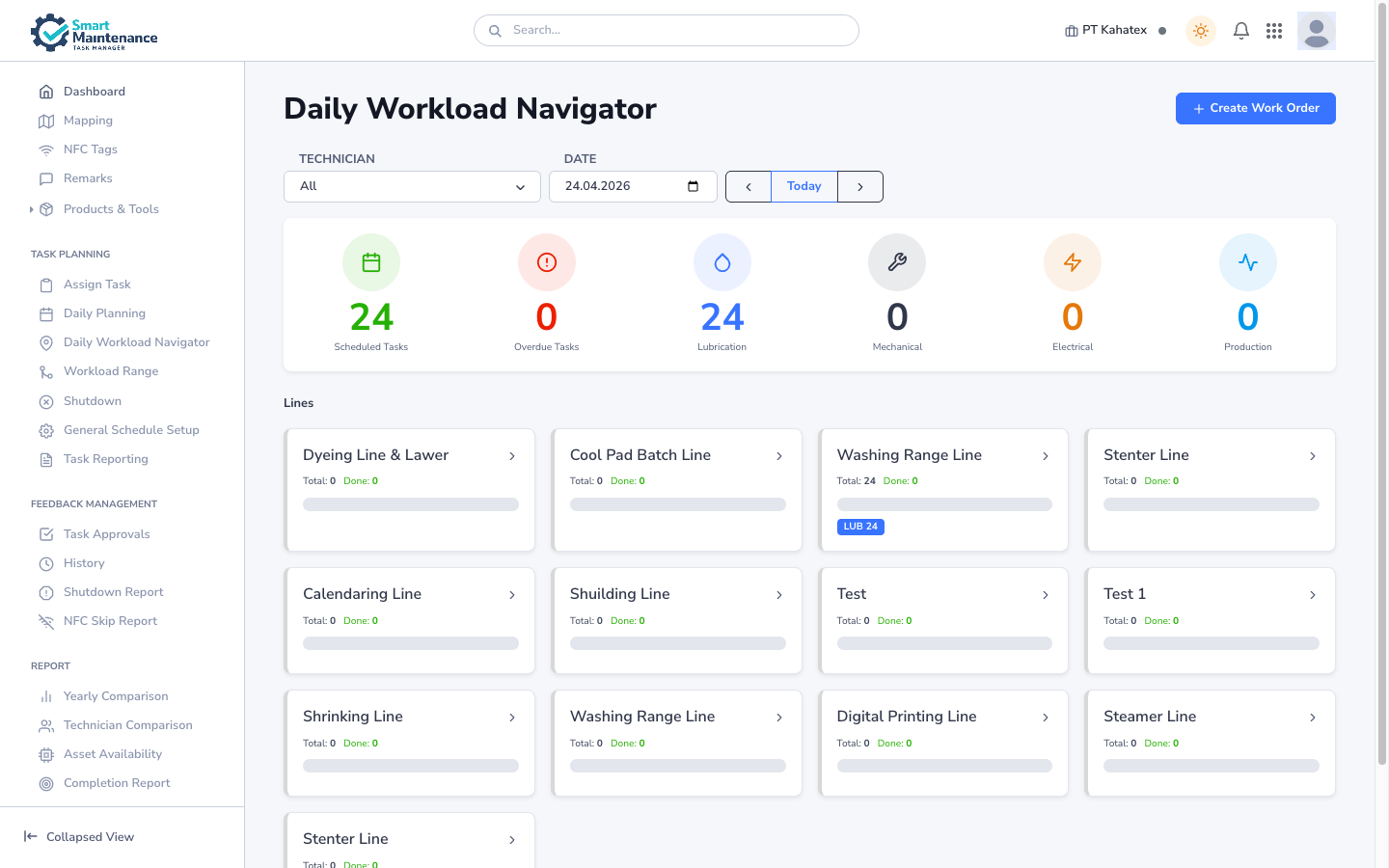
Layout
- Top bar:
- Create Work Order button (top-right).
- Filter / date row: Technician dropdown, Date picker, ◀ Today ▶ buttons to step by day.
- Summary row: six counters — Scheduled Tasks, Overdue Tasks, plus per-task-type: Lubrication, Mechanical, Electrical, Production.
- Breadcrumb: Lines (indicates you're at the line level; clicking a line drills deeper).
- Line cards: one card per production line, each showing:
- Line name.
- Total / Done counts.
- Progress bar.
- Per-task-type mini-badges (e.g.
LUB 24) for days where that line has work.
Steps
1. Pick the day
Use the date picker or the ◀ Today ▶ buttons to jump between days.
2. Filter by technician (optional)
Pick one technician from the dropdown to see only cards with that technician's work on the selected day.
3. Scan the summary row
Six counters at a glance tell you:
- How many tasks are scheduled today.
- How many are overdue.
- How the day splits across Lubrication, Mechanical, Electrical, Production.
4. Drill into a line
Click any line card to see the assets / sections / task points below it with their own counts.
5. Create a one-off work order
The Create Work Order button (top-right) opens an ad-hoc task creation form — useful when something comes up that the schedule didn't cover.
How it differs from other views
| Question | Use |
|---|---|
| "What's happening by time / calendar?" | Daily Planning |
| "What's happening where in the plant today?" | Daily Workload Navigator |
| "What's the longer-range load per technician?" | Workload Range |
| "What tasks are unassigned?" | Assign Task |
They're complementary — power users open multiple tabs during planning.
Things to watch for
Create Work Order creates an ad-hoc task, not a recurring one
The button is for one-off work. To create a recurring task, edit the schedule in General Schedule Setup.
Use the date picker for non-today views
To see tomorrow's load, pick tomorrow's date. The page defaults to today but doesn't lock to it.
Related topics
- Daily Planning — calendar view of the same data.
- Workload Range — per-technician view over a date range.
- Assign Task — for unassigned work.
- Mapping — the hierarchy the lines belong to.
- Supervisor handbook