Approve or reject a completed task
Review work submitted by technicians and either sign it off or send it back for rework.
Required role
Supervisor or Admin.
Overview
Task approval is optional — check your company setting
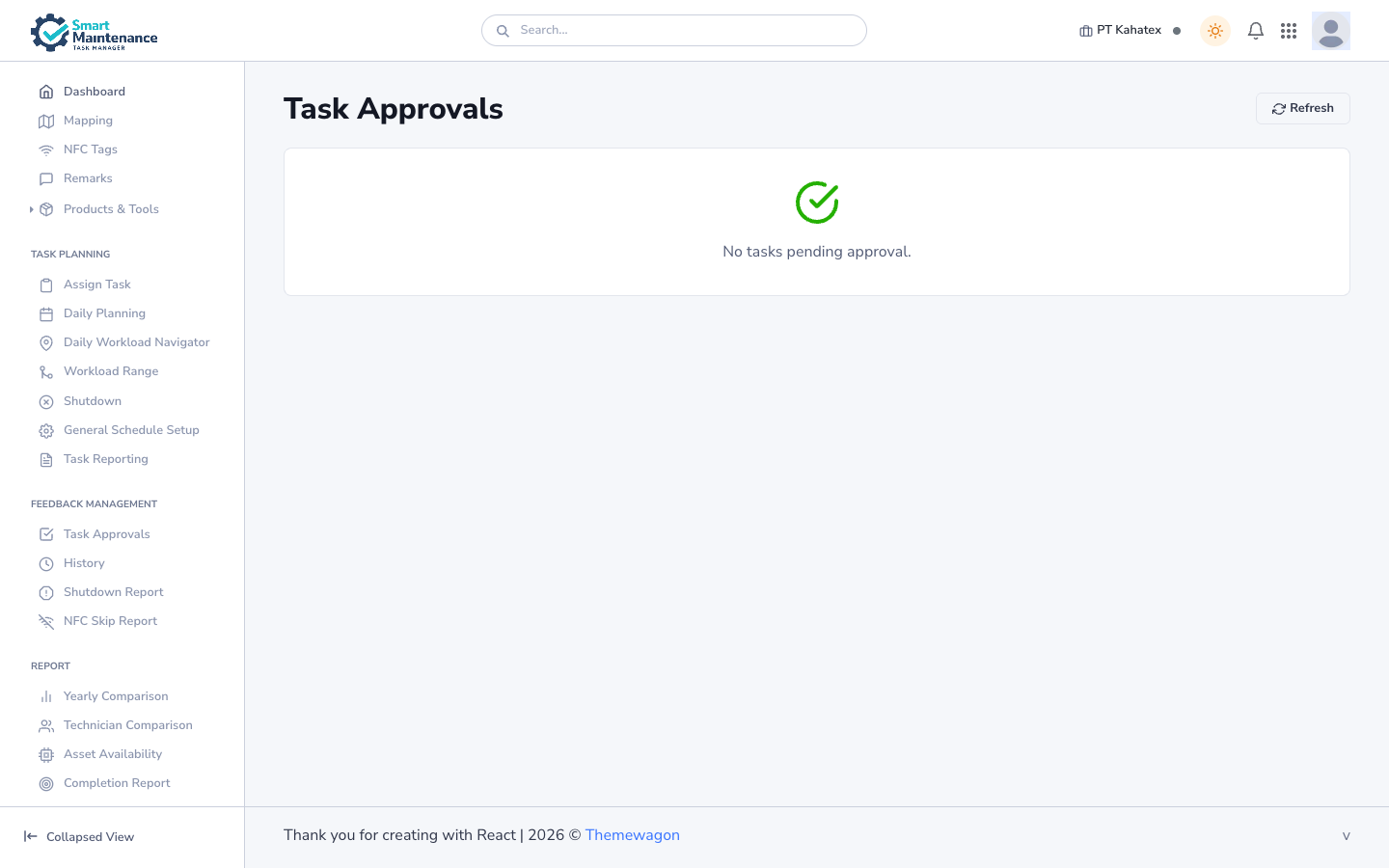
The approval step only runs if your Admin enabled Require Supervisor Approval for Task Completion in Company Setting → Task Approval. Many installations run without approval — technician submits = task complete. If your Task Approvals queue is consistently empty on a busy day, check that setting first.
When approval is enabled and a technician submits a completed task from the mobile app, the task enters status Pending approval and appears in the Approvals queue on the web portal. You review the submission — form values, photos, safety acknowledgements — and either:
- Approve → the task closes with status Completed.
- Reject → the task reopens in the technician's list with your rejection reason attached.
When approval is disabled, technician submissions auto-complete. Approvals queue stays empty and approved/rejected notifications never fire.
Approvals should be timely. A queue that grows beyond a shift's worth of work is a sign either of an understaffed supervisor or a team-wide issue that deserves a separate look.
Real-time updates arrive as new submissions — the page updates without a manual refresh.
Prerequisites
- You're signed in as a Supervisor or Admin.
- At least one technician has submitted a task.
Open the approvals queue
- In the sidebar, click Approvals.
- The queue shows:
- Tasks with status 5 (Pending) — awaiting your review.
- Tasks with status 6 (Rejected) — ones you've sent back, still awaiting re-submission.
- Tasks with status 3 (Approved) — recently closed, for your reference.
- By default the view is filtered to Pending. Use the filter bar to show others.
Each row shows: task name, asset, technician, submitted time, priority, and a status chip. Sort by submitted time (oldest first) to clear the queue fairly.
Review a submitted task
1. Open the task
Click the row. A detail panel or new page opens with the full submission.
2. Check the form values
Look for:
- Plausibility — are the measurements in a reasonable range for this asset?
- Thresholds — values highlighted red are outside the configured threshold. These may be genuine findings (the asset is really running hot) or data-entry errors (a typo).
- Consistency — if the technician reported "condition: good" but logged a value outside threshold, something doesn't add up.
3. Check the photos
- Are they present? Some tasks require photos; the mobile app enforces this, but verify.
- Are they clear? Blurred, dark, or wrong-subject photos are grounds for rejection.
- Do they match the reported condition?
Click a photo to view it full-size. Use arrow keys to flip through.
4. Check safety acknowledgements
The detail view shows each safety measure with a timestamp of when the technician acknowledged it. Patterns to watch for:
- All acknowledgements stamped within a few seconds of each other → technician tapped through without reading.
- A missing acknowledgement → the mobile app blocks submission without acknowledgement, so a gap suggests a platform issue; flag it for support.
5. Check the notes
If the technician left notes or flagged an issue, read them carefully. A brief note like "vibration elevated, recommend follow-up inspection" warrants action outside of this approval — raise a repair request or create a follow-up task.
6. Decide: approve or reject
Approve
- Click Approve.
- The task status changes to Completed immediately.
- The technician receives a push notification: Task approved.
- The task disappears from your Pending view.
Reject
- Click Reject.
- A modal prompts for a rejection reason — this is required.
- Enter a clear, specific reason. Good examples:
- "Photo is too dark to confirm seal condition — please retake with flash."
- "Temperature reading of 450°C is outside plausible range — please verify and resubmit."
- "Missing grease quantity — the field was skipped."
- Click Confirm rejection.
What happens next:
- The task status changes to Rejected.
- The technician receives a push notification with your reason.
- The task reopens in the technician's list for rework.
- When they resubmit, it returns to your queue as a new pending item.
Reject with specifics, not generics
"Resubmit please" gives the technician nothing to work with. Always name the field, the photo, or the specific problem — it shortens the feedback loop and keeps them engaged.
Bulk actions
For tasks that you'd approve without a deep review (routine, repetitive, no red flags):
- Check the boxes next to multiple tasks in the queue.
- Click Approve selected in the bulk action bar.
- Confirm.
Don't bulk-approve without looking
Bulk approval is for volume, not for skipping review. If you find yourself bulk-approving entire shifts' worth of work, the data quality will slip over weeks. Scan at least a sample.
Bulk rejection isn't supported — rejection requires a task-specific reason.
Approval flow in practice
When a technician disagrees with a rejection
Rejected tasks come back into the technician's list. If the technician believes the rejection is wrong (the photo really was clear, the measurement really is correct), they can:
- Resubmit with additional context in the notes.
- Raise it with you directly over radio / in person.
There's no formal appeals process inside the platform. Discuss, agree, move on.
When a task is rejected multiple times
If the same task gets rejected three times, something is wrong beyond the individual submission — a faulty asset, unclear task configuration, or a team misunderstanding. Stop rejecting and investigate the underlying cause.
When you're the one who submitted (Admin executing tasks)
Admins can execute tasks on mobile. An Admin can approve their own submissions, but it's a poor practice — have another Supervisor approve your work for the audit trail.
Things to watch for
Stale queue
The queue is a leading indicator. If it's consistently over twenty items, either workload exceeds supervision capacity or approval habits are lax. Track it and adjust.
Approve promptly
Aim for <1 hour from submission to resolution during the shift. Technicians feel blocked when their work hangs in pending.
Approval doesn't roll back
Once approved, a task can't be unapproved from this screen. If you realise the approval was a mistake, raise it via your Admin — they can adjust the audit record but it's not a routine operation.
Result
After reviewing:
- Approved tasks are visible in reports (Task History, Completion Report, OEE).
- Rejected tasks are back in the technician's list for rework.
- The dashboard completion rate updates in real time.
Related topics
- Assigning tasks — upstream of this workflow.
- Dashboard — see your queue depth at a glance.
- Reports — downstream view of approved work.
- Notifications — control what notifications you receive about new submissions.
- Executing a task (mobile) — the technician's view.
- Supervisor handbook — the role overview.