Daily Planning
A calendar view of every scheduled task, with per-day event counts and filtering by technician or production site.
Required role
Supervisor, Admin, or Manager. Viewer has read-only access.
Overview
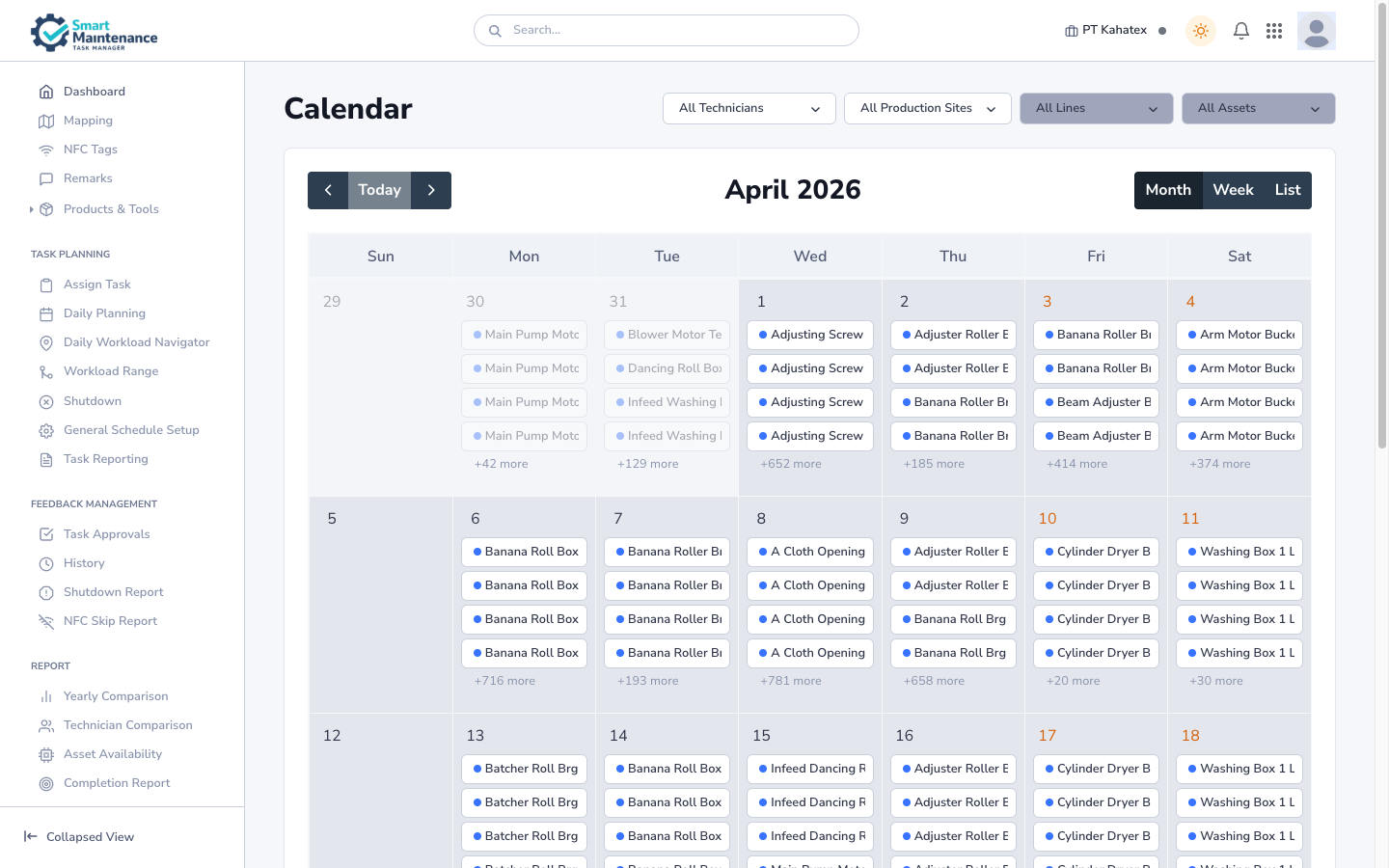
Daily Planning (page title: Calendar) is the calendar layer on top of scheduling. It shows every task instance plotted on its due date. Where Assign Task is about distributing unassigned work and Daily Workload Navigator answers "where in the plant is today's work?", Daily Planning answers "what's happening on which day?"
Open Daily Planning
Task Planning → Daily Planning in the sidebar (URL /calendar).
Layout
- Filters (top-right of page): Technician, Production Site, Line, Asset. Line and Asset cascade from the Production Site selection.
- Month-nav row: ◀ Today ▶ to step by month, plus the big month heading (e.g. "April 2026") in the centre.
- View toggle (top-right of the calendar itself): Month / Week / List.
- Grid: days as cells; each cell shows the date number and up to four event names. Days with more than four show a
+N morelink.
Switch view
Three zoom levels:
- Month (default) — seven columns, five or six rows. Up to four events visible per day, with
+N morefor overflow. - Week — one week at a time with more events visible per day.
- List — a flat chronological list of events across the current range.
There's no separate "Day" or "Agenda" view.
Filter
| Filter | Effect |
|---|---|
| Technician | Show only events assigned to one person, or leave as "All Technicians". |
| Production Site | Narrow to one site. Enables the Line filter. |
| Line | Cascades from Production Site. Enables the Asset filter. |
| Asset | Cascades from Line. |
Filters persist across sessions.
Event cards
Each event in a day cell shows:
- A coloured dot.
- The task name (truncated if long).
Clicking an event opens the task detail. Clicking +N more expands the day's full event list.
Typical supervisor morning
- Open Daily Planning.
- Scan the current week for load balance — are all days comparable, or is there a Monday pile-up?
- Use the Technician filter to check one person's schedule at a time.
- Jump to Assign Task if something needs (re)assigning.
Things to watch for
Daily Planning shows scheduled tasks; Assign Task shows unassigned ones
These are complementary. Daily Planning is "what's the week look like"; Assign Task is "here are new tasks, distribute them". Use both.
Events are read-only from the calendar
Clicking an event opens details; the calendar itself doesn't re-schedule by drag. To reschedule or reassign, open the task detail or go to Assign Task.
Related topics
- General Schedule Setup — the rules that populate this calendar.
- Assign Task — for unassigned / new tasks.
- Daily Workload Navigator — line-card view of today's work.
- Workload Range — per-technician workload over a range.
- Supervisor handbook